
Documentation

Quick Start
Welcome to Aura. This page introduces important concepts to use Aura on a daily basis. For deep dives on concepts check the documentation menu. For a high level crash course on Aura, you can also check out the tutorial below.

Installation
-
[Aura Public Beta] Create an account at tryaura.dev/about
-
After creating an account you’ll see an option to download the latest installer. You can always find the latest installer after logging in at tryaura.dev
-
Run the installer and select your Unreal Engine version. Note: Aura is installed as a plugin at the engine level.
- For example if you install for UE 5.6, Aura can be enabled in any 5.6 project. If you upgrade to UE 5.7, you’ll need to run the installer for 5.7 too.
-
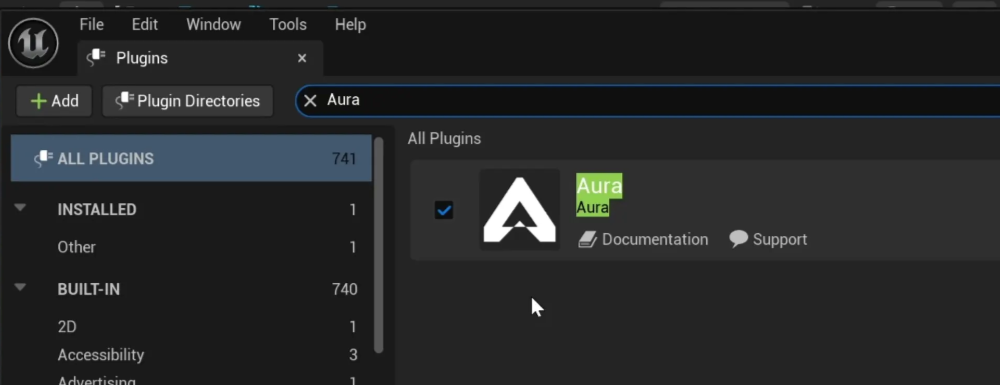
Open your project and go to Edit > Plugins
-
Search for “Aura” > Enable Aura > Restart the editor.
-
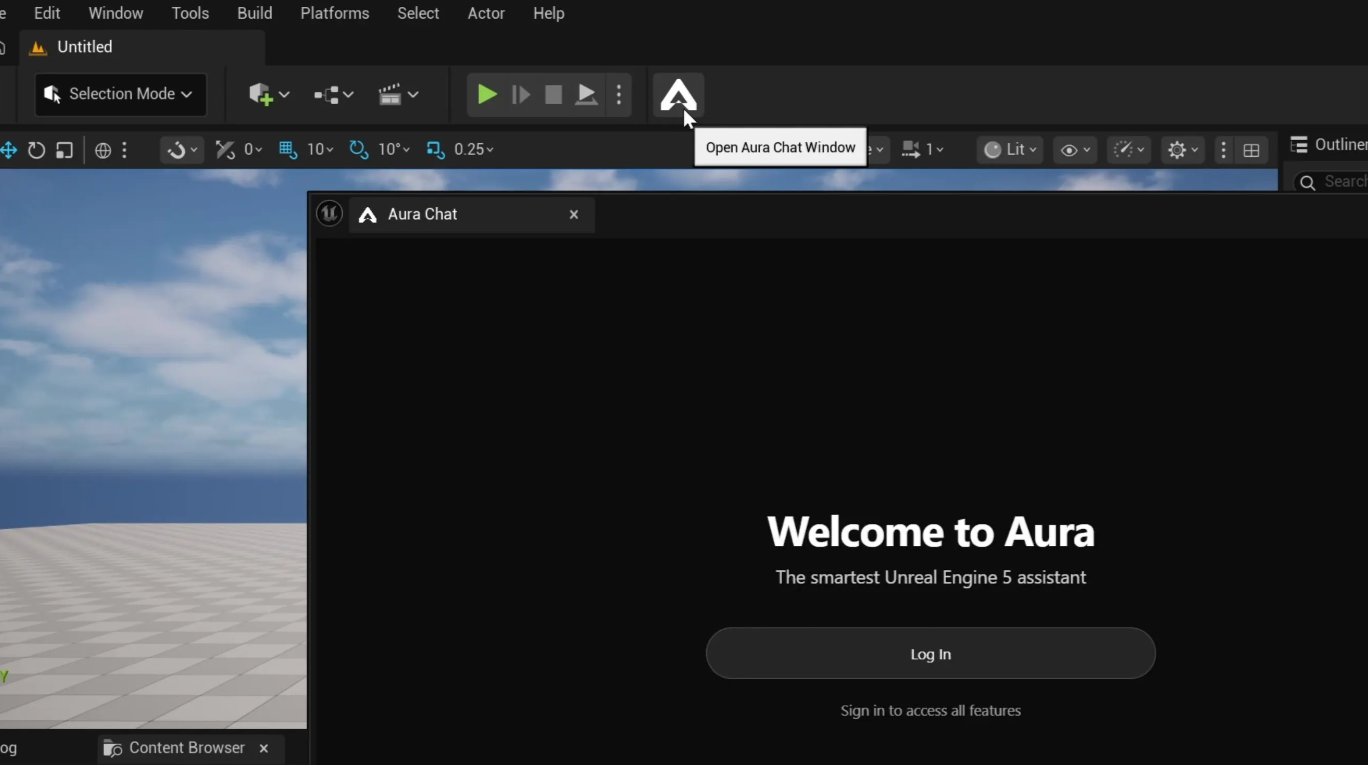
A new Aura button will be at the top of the editor. Click the button and the Aura chat will open.
-
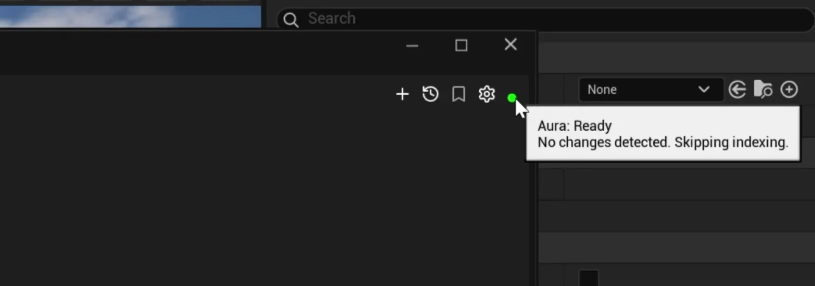
Confirm the Aura server is running by hovering over the green 🟢 indicator at the top right
-
Test Aura can see your project: “Tell me about this project”
Aura Modes
Aura has three distinct modes that’s good to be aware of: Plan, Ask and Agent mode.
Ask
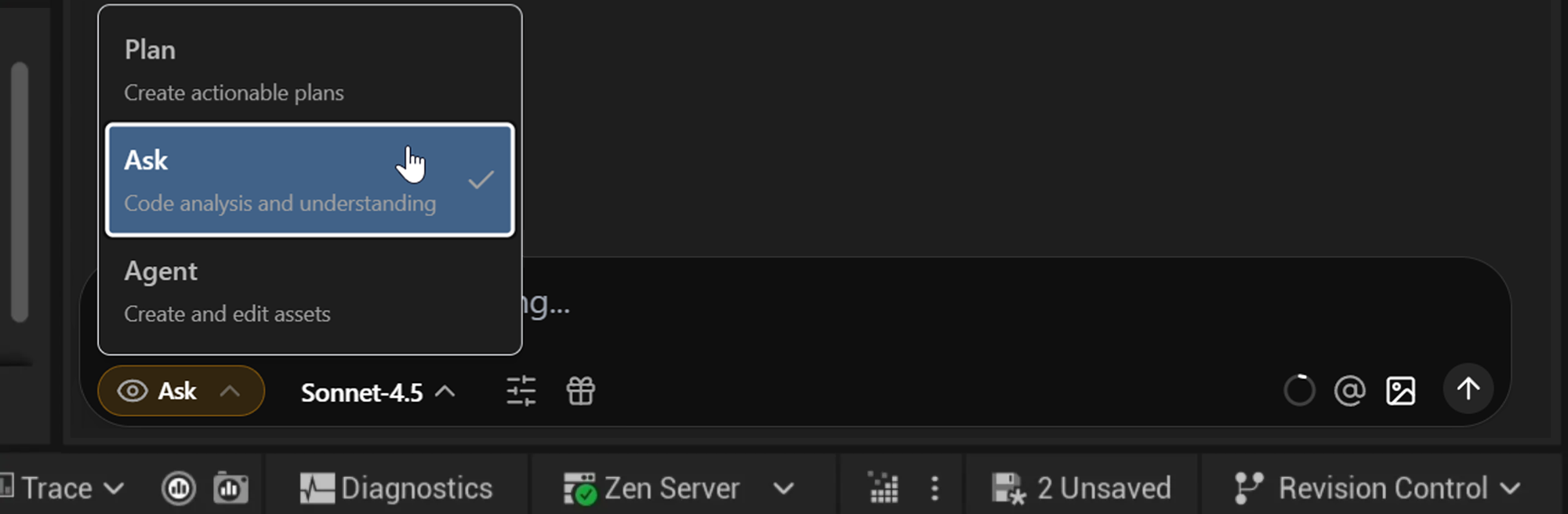
Aura analyzes your project and provides answers uniquely tailored to your project. For example you can ask Aura:
-
“How would I add a new GAS-based jetpack ability with configurable duration that triggers on second jump activation?”
-
"Help me create a new weapon variant that’s based off of the shotgun”
-
“Look through the open scene and identify all children of @BP_Resource_Nodes that are missing a reference on their rarity component”
-
”What’s wrong with @WeaponManager.cpp? Occasionally, calling the ‘Reload’ UFunction in BP_FirstPerson_Character fails to reload and logs a null reference”
-
”Search the FAB store for free environment assets”
You can also search the FAB store directly from Aura to quickly find assets for your project.
Learn more about Project Understanding. Aura cannot make changes to your project while in Ask mode.
Plan
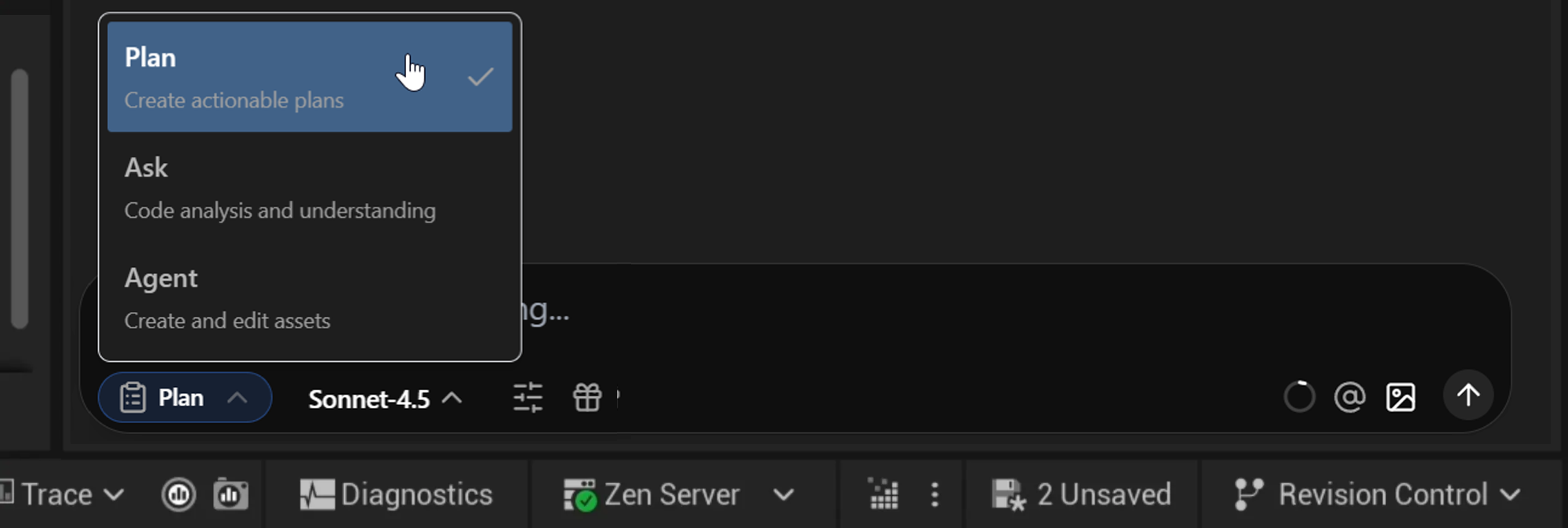
Plan mode is ideal when you need to design and structure complex implementations before execution. Aura breaks down your request into detailed, step-by-step implementation plans that you can review, refine, and approve before any changes are made.
Use Plan mode when you want to:
-
Review before implementing: Get a complete breakdown of what will be created or modified before Aura makes any changes to your project.
-
Understand the approach: See exactly how Aura intends to solve your problem, including which blueprints, functions, and properties will be affected.
-
Iterate on design: Refine the implementation strategy through discussion before committing to changes.
Example requests for Plan mode:
-
"Plan out a GAS-based stamina system that drains during sprinting and regenerates when idle, with UI feedback"
-
"I need a plan for adding a weapon upgrade system that modifies damage, fire rate, and reload speed through data-driven configs"
-
"Show me how you'd implement a dialogue system with branching conversations stored in data tables"
-
"Plan the architecture for a save/load system that persists player inventory, quest progress, and world state"
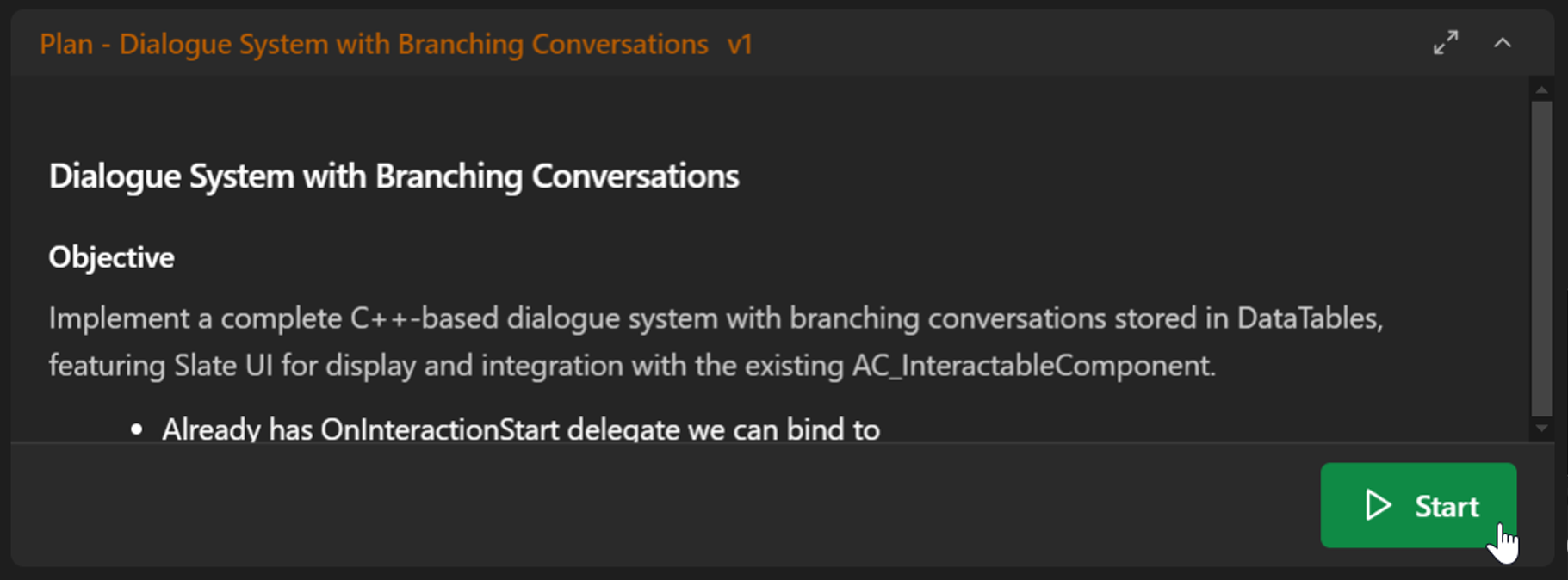
When you are done iterating on the plan with Aura, press the 'Start' button and Aura will begin implementing it (Agent mode).
Note: Plans are stored inside your project directory: "/Saved/.Aura/plans" as editable markdown (.md) files.
Agent
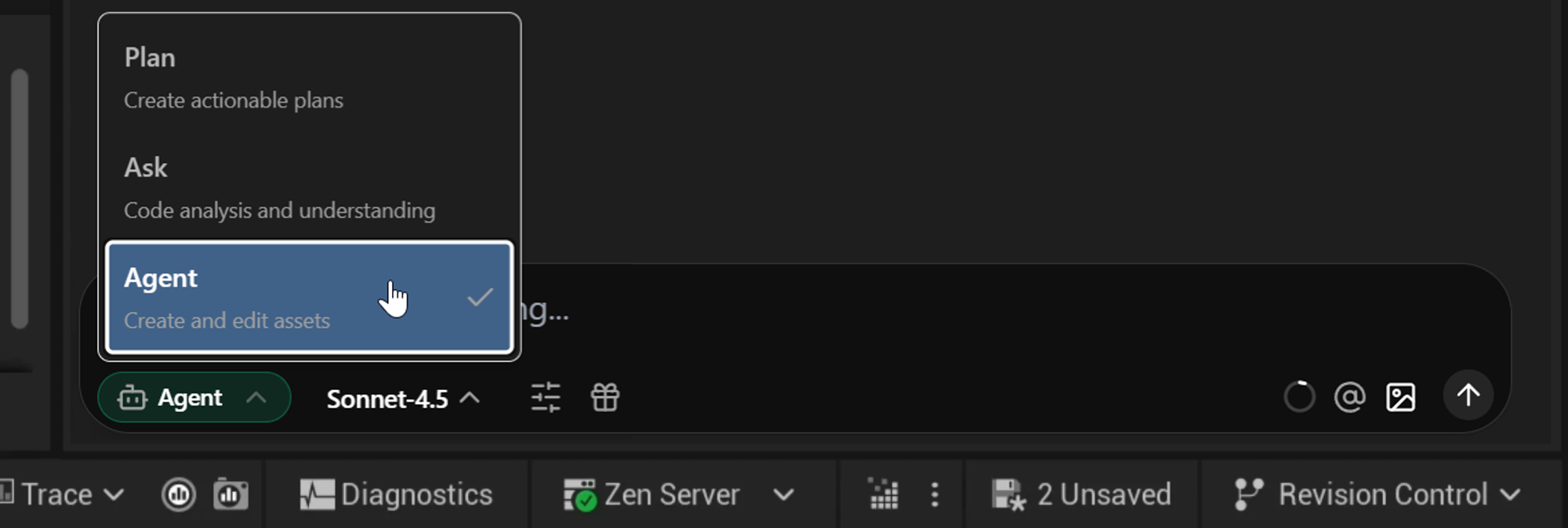
While in Agent mode Aura has ability to create files and edit parts of your project.
Aura can handle various tasks such as:
-
Creating and editing blueprints, enums, structs, data tables and more.
-
“Create a blueprint for a jump pad. The blueprint should have a flattened cylinder mesh.”
- Learn more about Blueprints
-
“Create an
S_RingConfigstruct, which has int values for Str, Dex, Int, Faith, Luck, and Stamina, a model parameter, and an icon texture. Then, create aDT_RingConfigsdata table that has 8 different rings in it.”
-
-
Creating concept images and 3D models
-
“Create an image of a stylized wooden crate in a non-orthographic view.”
-
“Generate a 3D model based on this image.”
-
Learn more about Art Tooling
-
-
Create and edit C++ files
-
“I'd like to create a UI overlay that shows my current score as well as how many photos I have left before I have to reload. I want you to do all of this in slate. all the values you need already exist in CPP files in terms of the score and number of pictures, etc.”
-
Aura can also compile and run Live Coding for you.
-
Learn more about Coding Agent (C++)
-
-
Handling batch edits and tedious tasks
-
“Spawn this bowling pin asset multiple times in the shape of a bowling pin layout in a bowling alley”
-
“Find all the health pickups in this level that restore 50 HP or more and set them to 25 HP instead. Print the list of all the pickups you changed!”
-
“Change the player’s starting weapon to a rocket launcher.”
-
Learn more about Editor Agent (Unreal Python)
-
Aura Interface
At the top right of the Aura chat you’ll find the New Chat, Thread History, and Settings buttons.
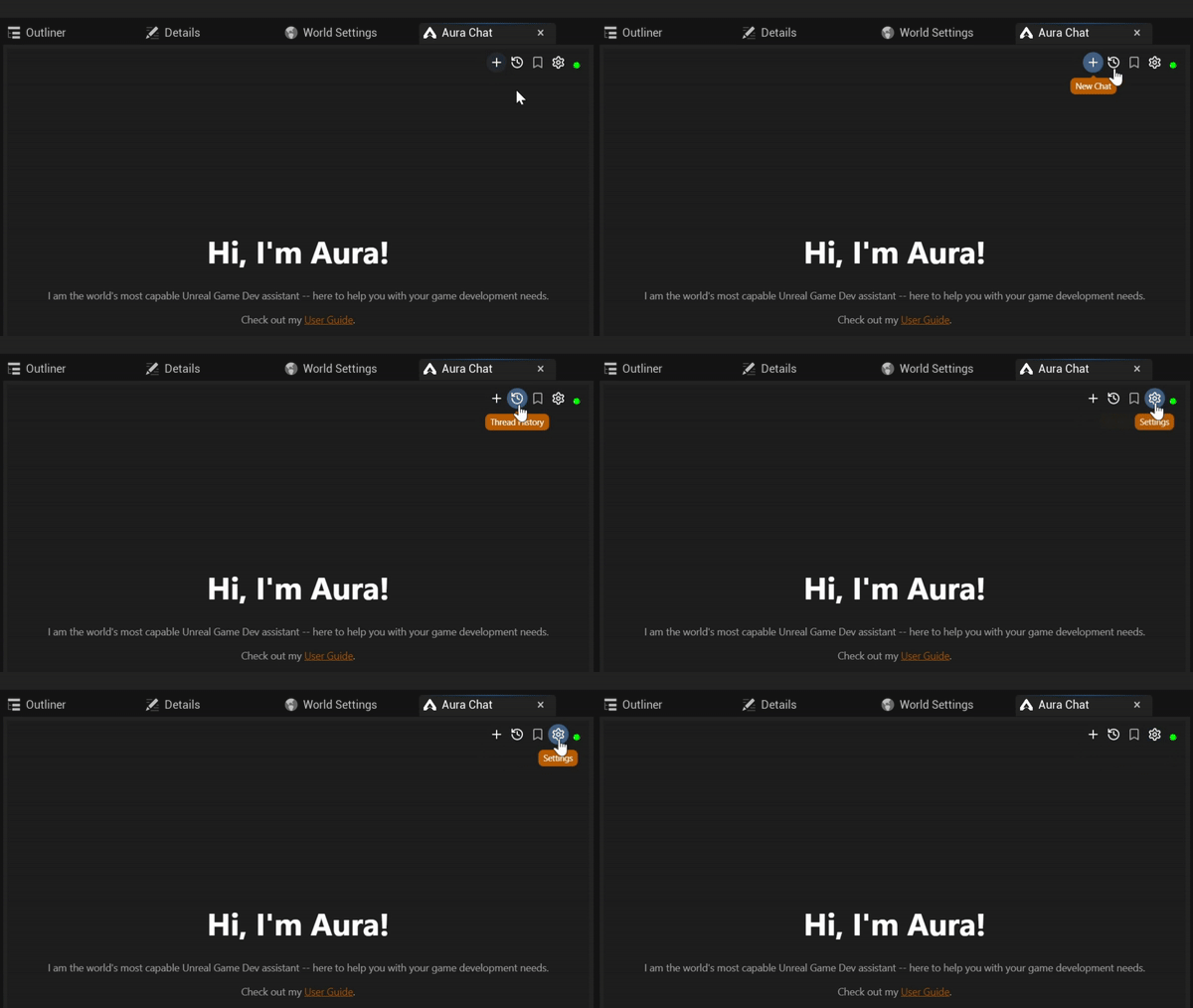
Conversations with Aura are organized into threads. You can switch threads by clicking the tabs at the top. Closed threads are kept in the Thread History.
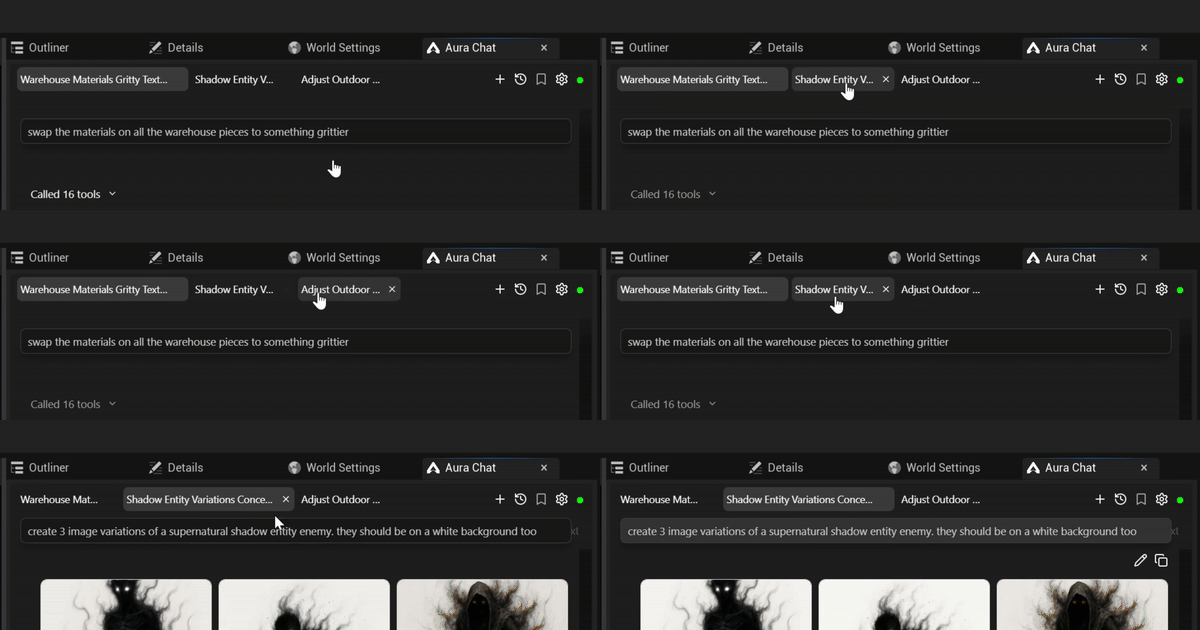
💡 You can run multiple prompts in parallel (up to ~4) allowing you to move onto other things. For example while Aura is creating a 3D model of jump pad in one thread, you can chat about a blueprint plan for the jump pad in another thread.
Learn more about Advanced Settings.
Giving Aura Context
Context is extra information provided to Aura such as files and assets. When Aura has specific files to reference it can construct better answers.
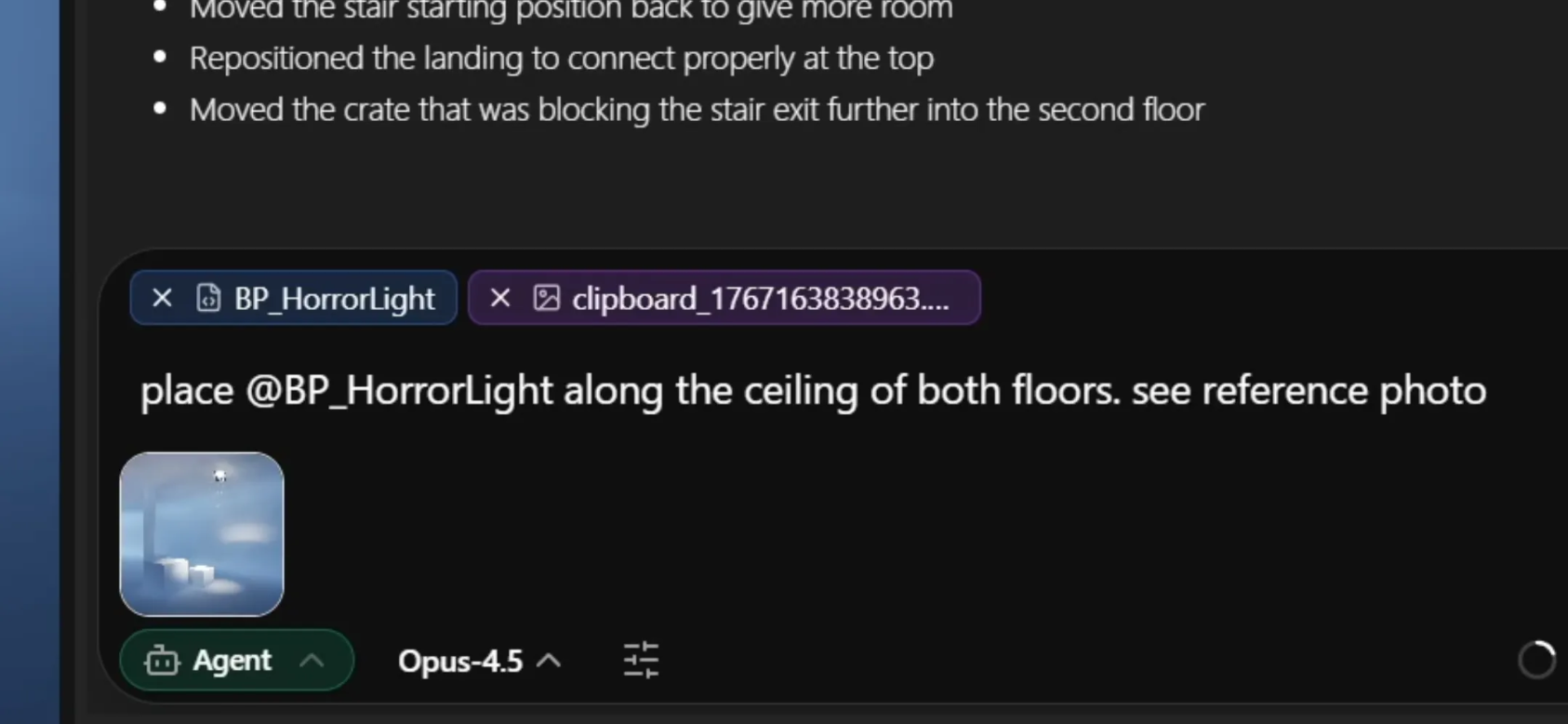
There are many ways to give Aura context which you can learn more about in Giving Aura Context, but the following are most important for getting started:
Drag & Drop
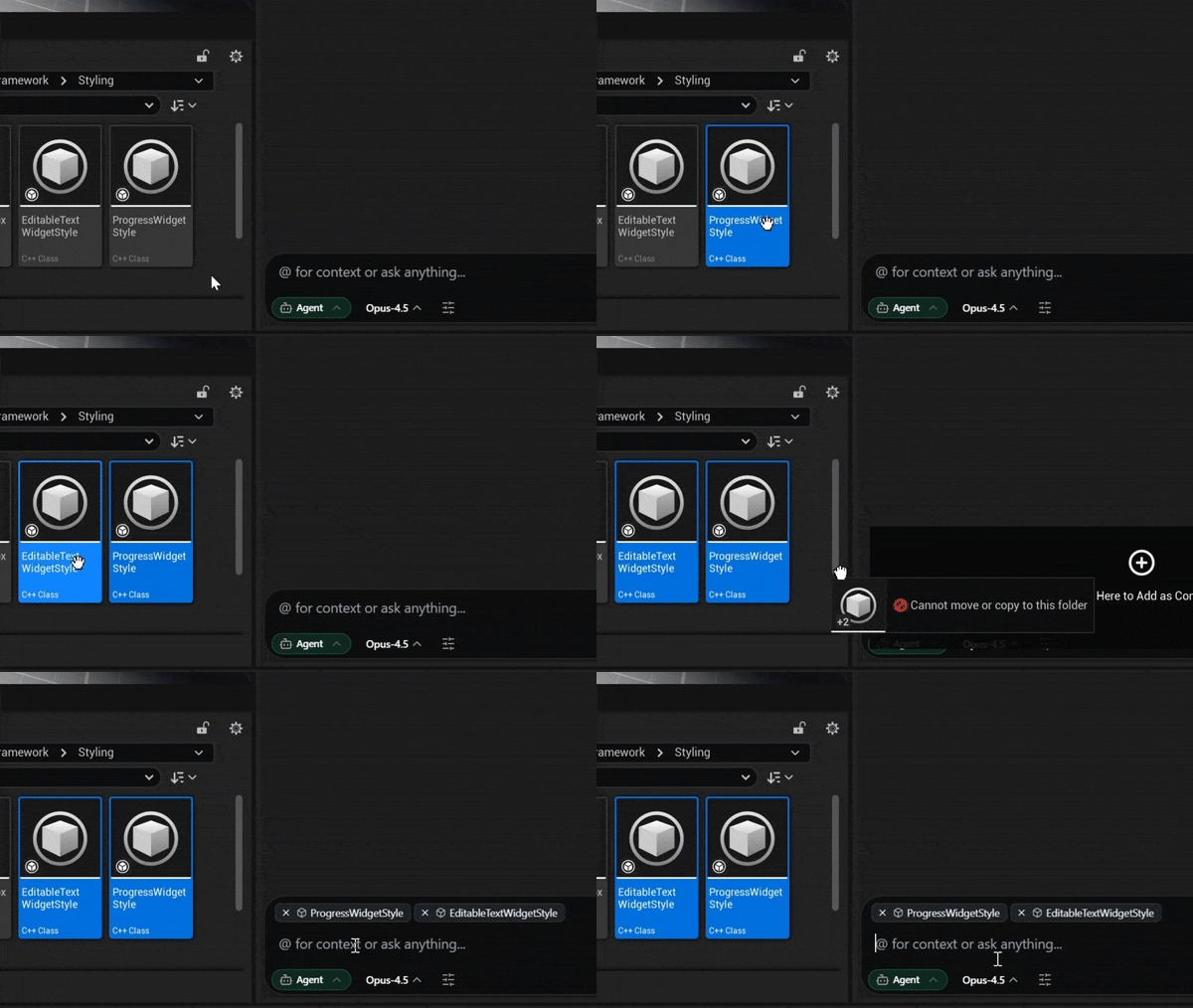
You can drag & drop files from Content Browser directly into Aura.
Image Attachments
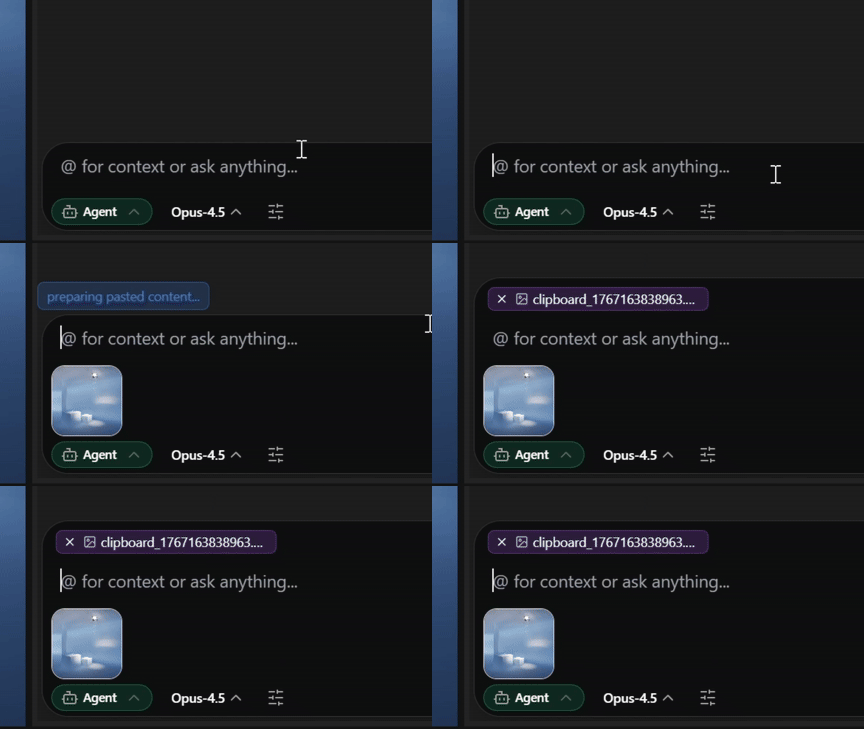
You can give Aura image references by:
-
Pasting from your clipboard
-
Uploading through the Attach Image button at the bottom right of chat.
-
Drag and drop from File Explorer and Content Browser
Export Chat
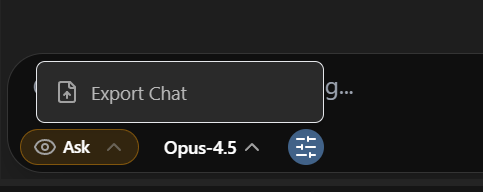
When debugging issues with the Aura team, chat exports help the team investigate issues and where Aura may have messed up. You can export your chat by clicking the Tools button at the bottom > Export Chat and then send it to the Aura team.
Usage Costs
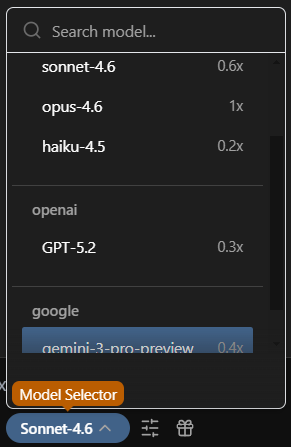
Aura is usage based where responses and tasks can vary in cost depending on the model you've selected and complexity of the task. For example if you ask Aura the same question, once with Sonnet 4.6 and once with Opus 4.6 selected, the Opus conversation will cost more because it's a much more advanced and expensive LLM to run.
Relative cost estimates are displayed in the model selector panel.
For tips on reducing spend, check out Prompting Tips.
You can keep track of usage events in your account at https://app.tryaura.dev/auth?redirectTo=%2Faccount.
Next steps
To learn how to get the most out of Aura, we suggest checking out Prompting Tips and then explore the core features:
For power user tips check out Giving Aura Context and Advanced Settings.